Label editor
Each printer can have its own badge layout. Open the editor in Settings → Printing and check-in → Printers with Edit label on the printer card.
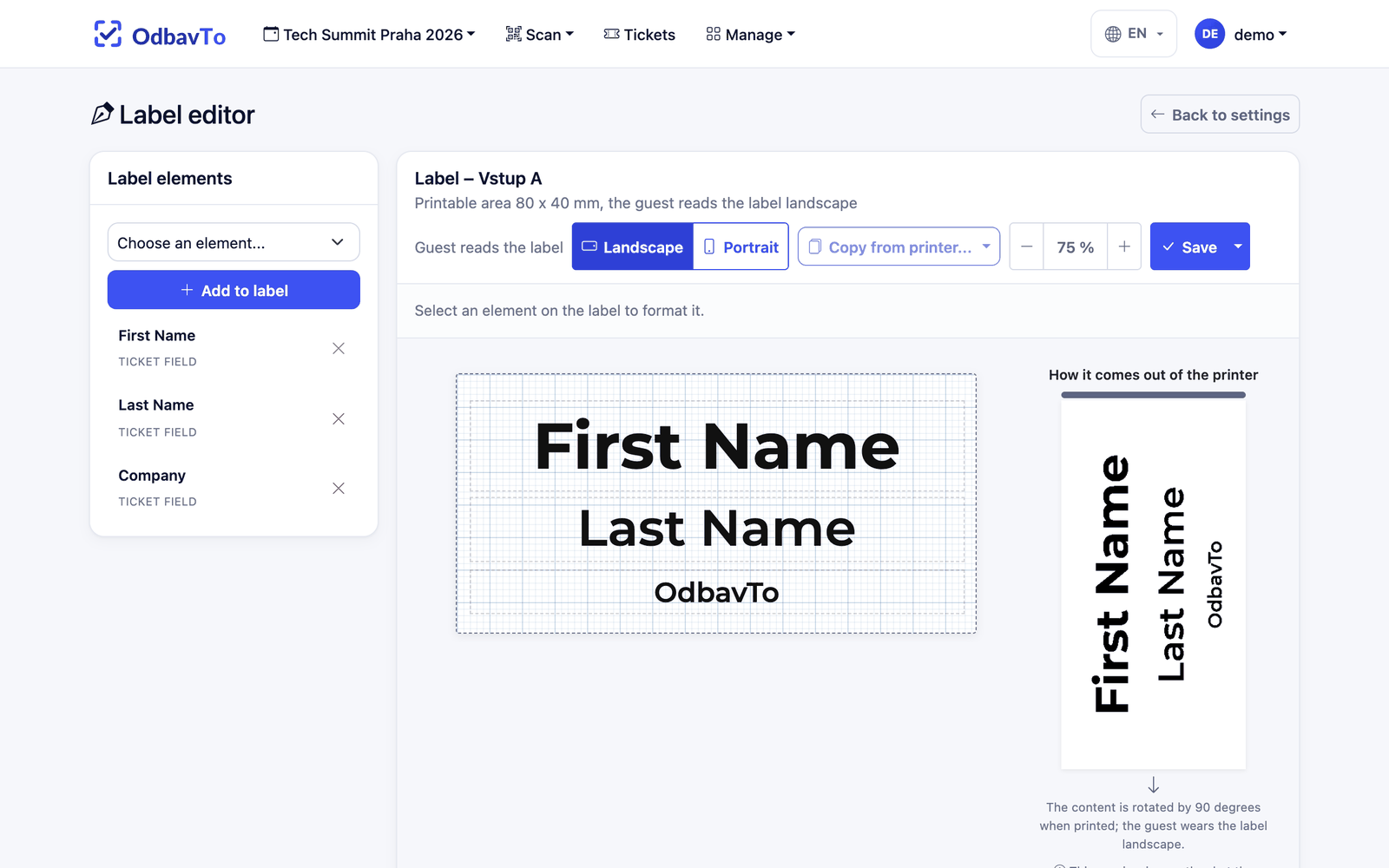
Without a custom layout, the classic label is printed: first name and company centered, automatic font size, company in a smaller font.
Label elements
| Element | Description |
|---|---|
| Ticket field | First name, last name, full name, company, email, ticket type, QR code as text, event name. |
| Custom text | Any fixed text, e.g. "SPEAKER" or the event hashtag. |
| QR code | The ticket's QR code as an image. |
| Image / logo | An uploaded PNG or JPEG up to 2 MB. |
A label can hold up to 30 elements.
Working in the editor
- Drag elements with the mouse and resize them by the corners of the frame. Exact position and size can be entered in mm.
- The font is Montserrat (bold / semibold), size in points (pt).
- Auto size (on by default for ticket fields) shrinks the text to fit the frame. A long name is never cut off.
- Alignment left / center / right.
- The Guest reads the label: landscape / portrait switch sets the orientation. The editor canvas always shows the label the way the guest will read it.
"How it comes out of the printer" preview
The preview is rendered by the same code that sends data to the printer. What you see is what gets printed. If text does not fit, or the layout stopped fitting after the label size changed, the preview shows a warning.
The preview uses placeholder data (First Name / Last Name / OdbavTo), never real attendees.
Other actions
- Copy from printer... copies the layout from another printer of the same event.
- Use classic label removes the custom layout and restores the classic badge.
Tip
After changing a printer's label size, open the editor and check the preview. Elements are not recalculated automatically.