Check-in and kiosk
Scanner
Open the scanner from the event menu with Scan. If the event has several printers, each has its own scanner and you choose in the dropdown which printer to print on. The printer status is shown in the scanner header.
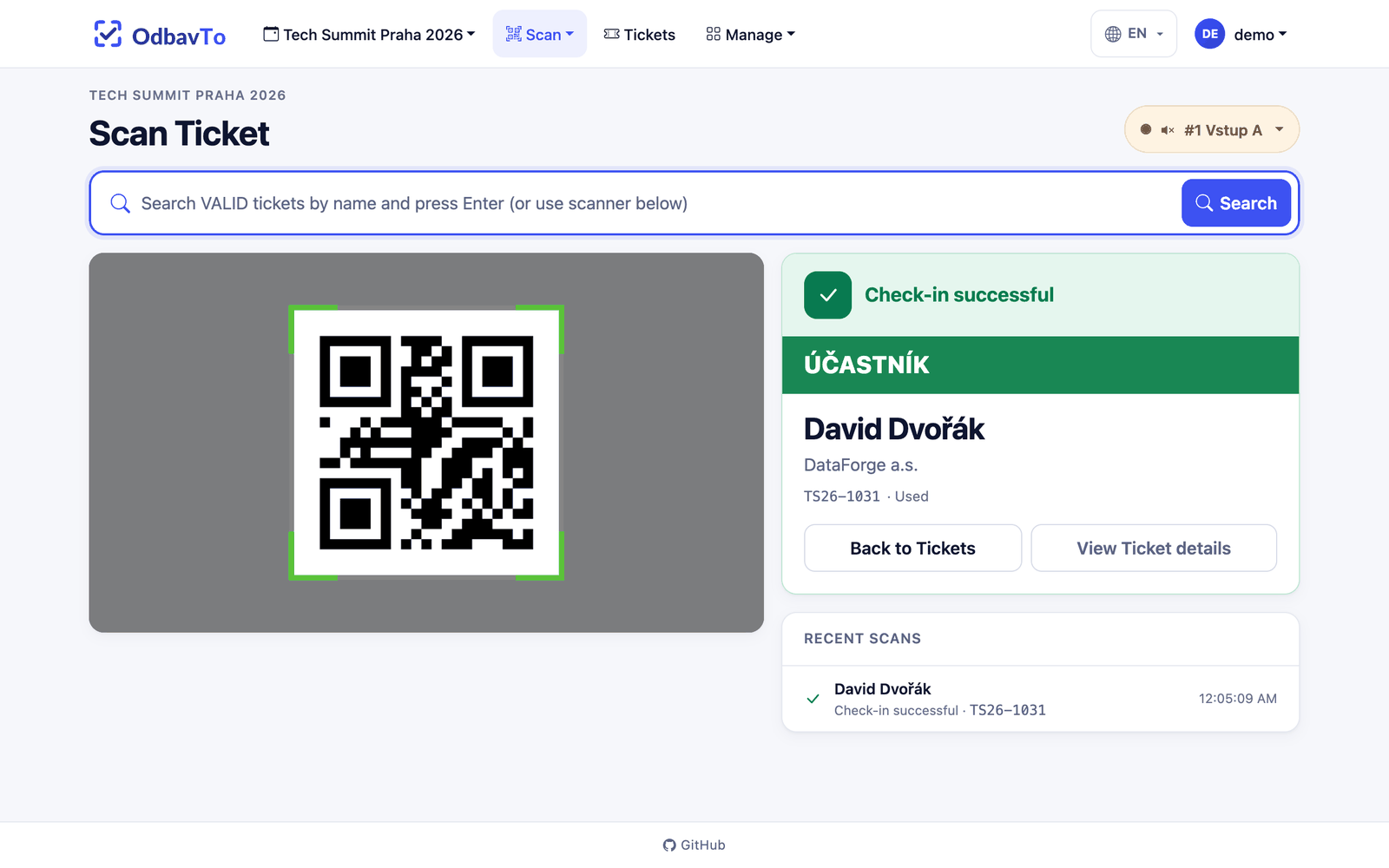
The scanner works on phones, tablets and laptops. The browser asks for camera access the first time.
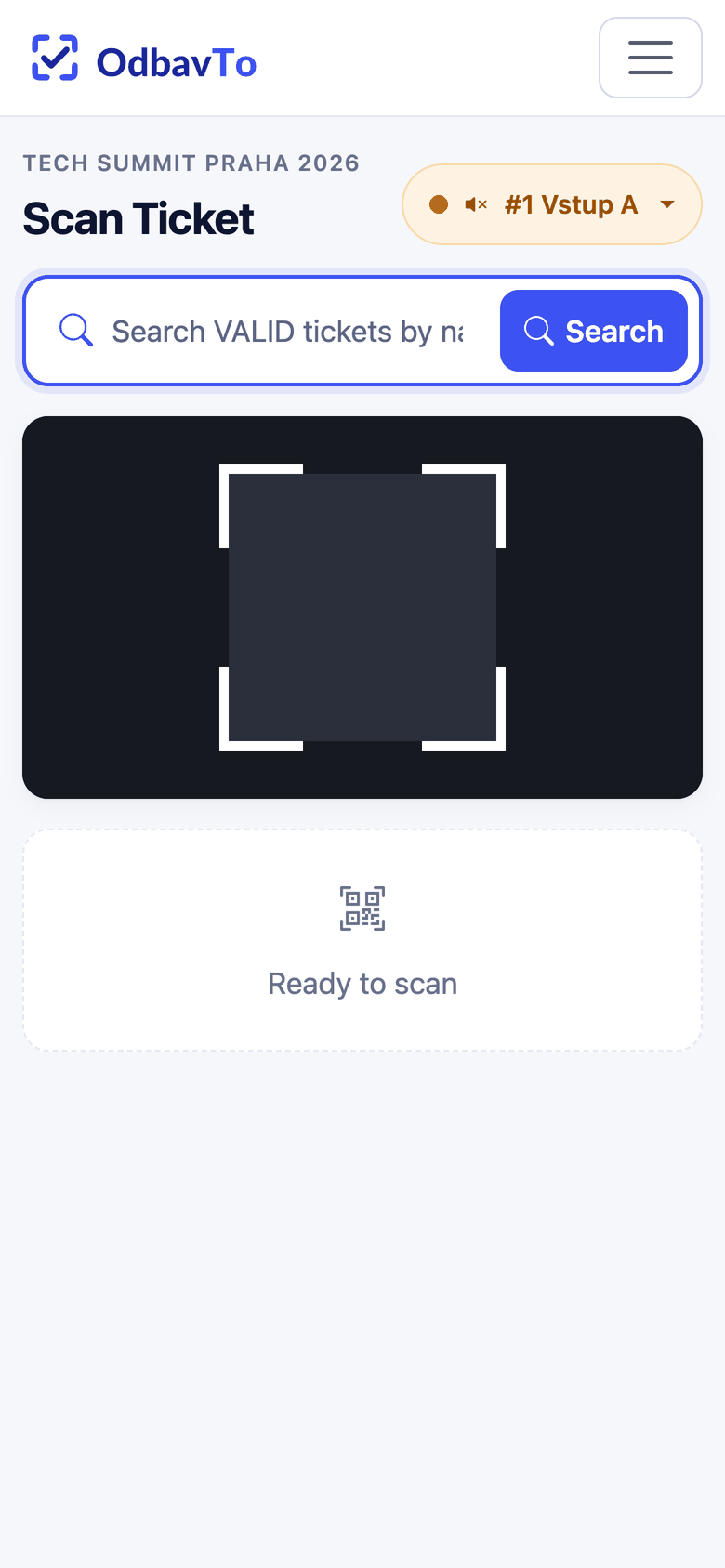
Scan result
| Result | Meaning |
|---|---|
| Success | The ticket was valid, it is checked in and the badge goes to the printer. |
| Already used | The ticket was checked in earlier, the time is shown. |
| Error | The ticket does not exist or is cancelled. |
The result also shows the ticket type in its color. Recent scans are listed below.
Search by name
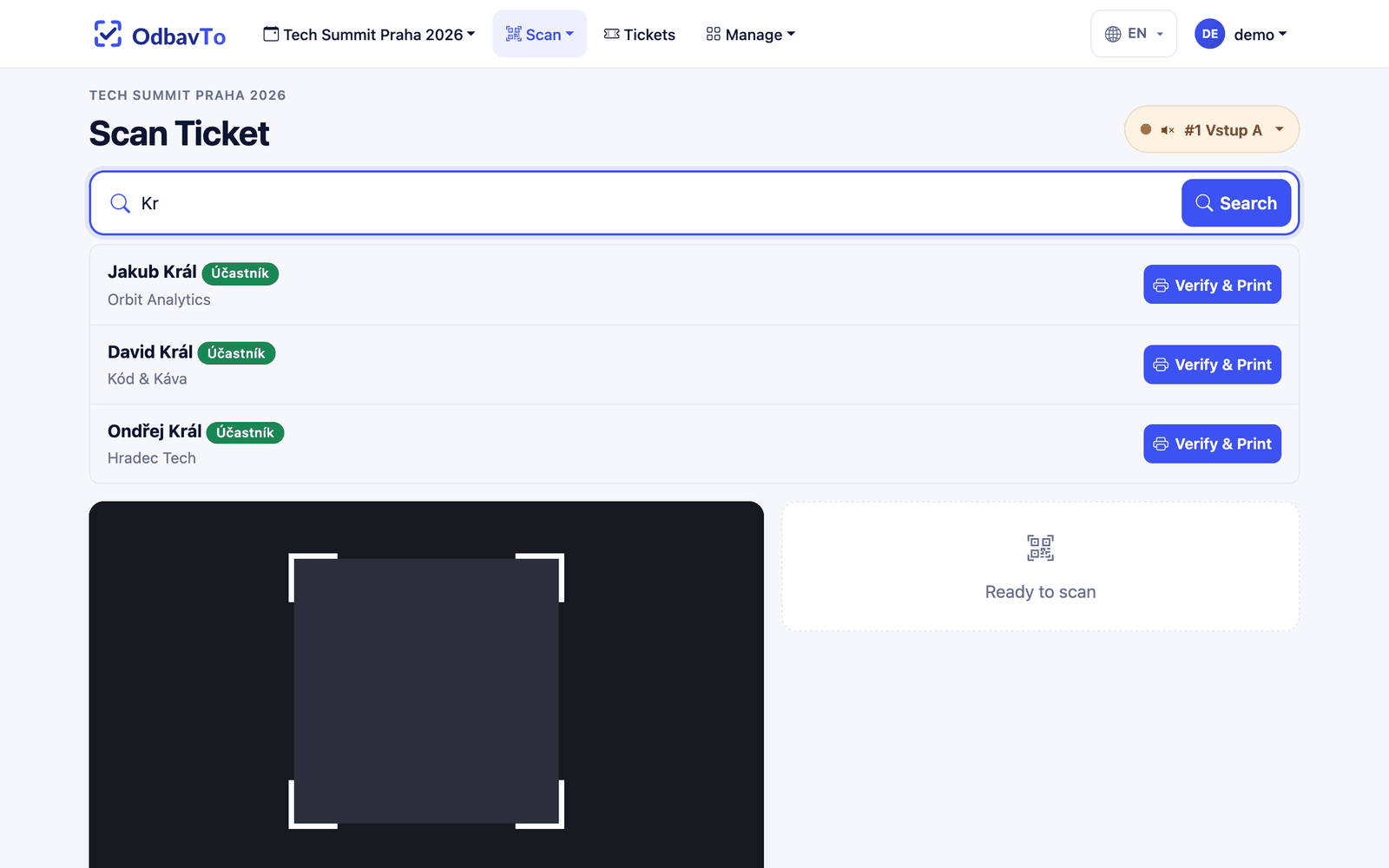
The attendee doesn't have the QR code at hand? Type part of the name into the search above the camera and press Enter. Valid tickets are listed and Verify & Print checks the attendee in right away.
Scanner behavior
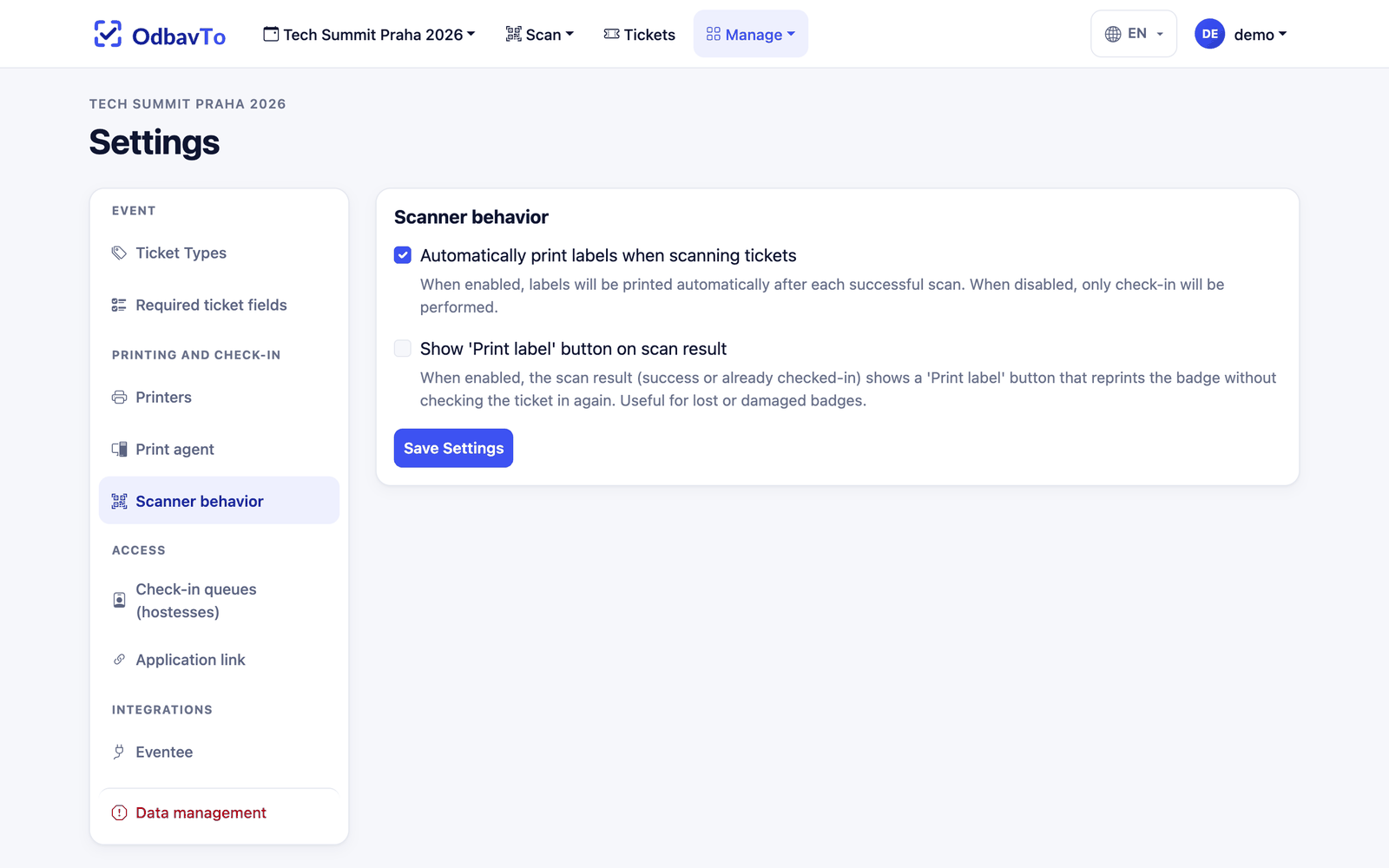
In Settings → Printing and check-in → Scanner behavior you set:
- Automatically print labels when scanning tickets (on by default): the badge prints right after a successful check-in.
- Show 'Print label' button on scan result, e.g. for reprinting or when automatic printing is off.
Sounds
Turn on sound feedback (success / error) in the printer status menu in the header. It is off by default and the browser remembers your choice.
Kiosk
The kiosk is a full-screen mode for self-service check-in: the attendee holds the QR code to the camera and the badge prints automatically.
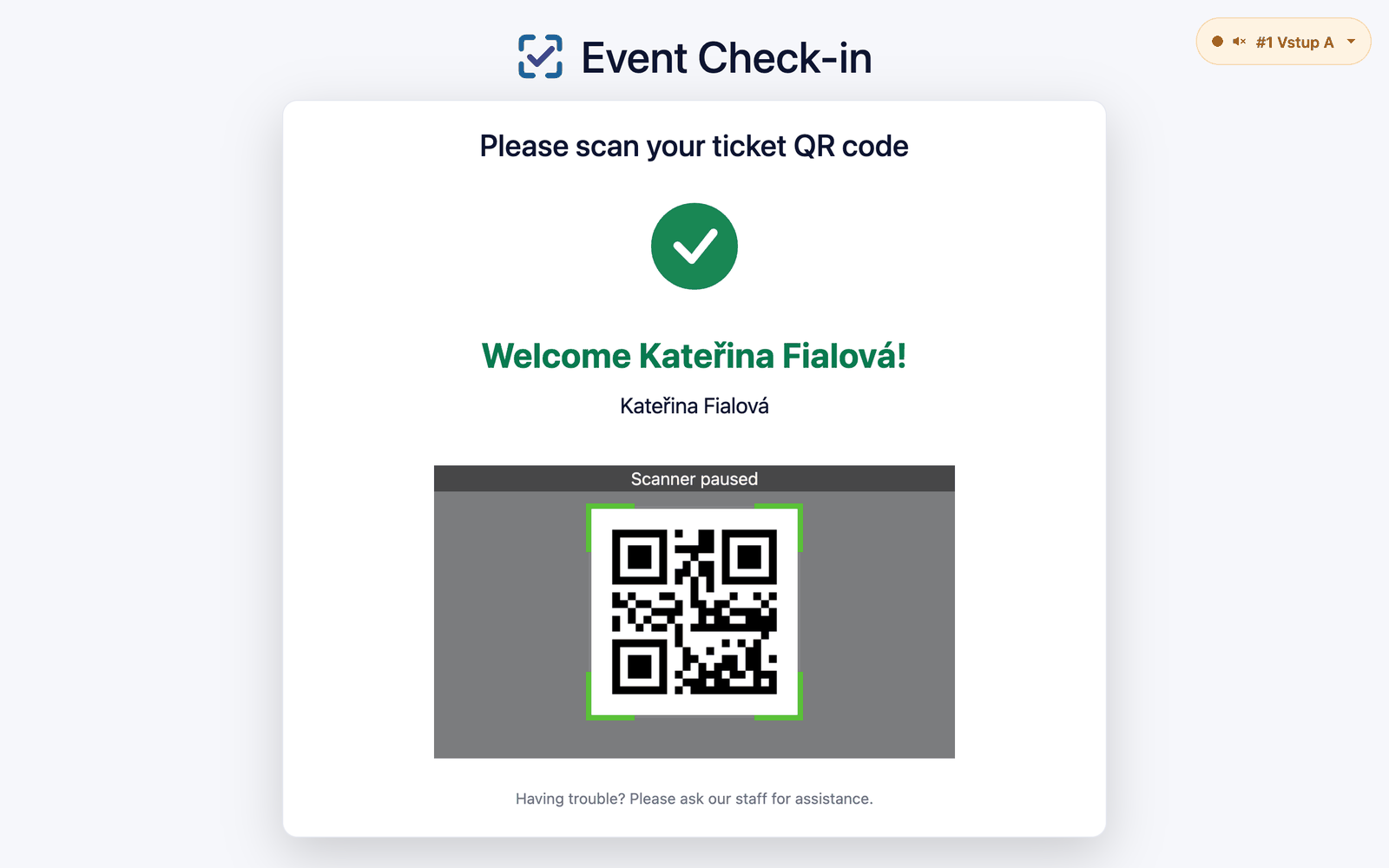
- Open Manage → Kiosk and choose the printer.
- Switch the browser to full screen (F11).
- Leave the device at the entrance, ideally on a stand with the camera facing the attendees.
Printer status and the sound toggle are at the top right.
Tip
The kiosk requires a logged-in user. Log in on the kiosk device before the event starts.