Importing tickets
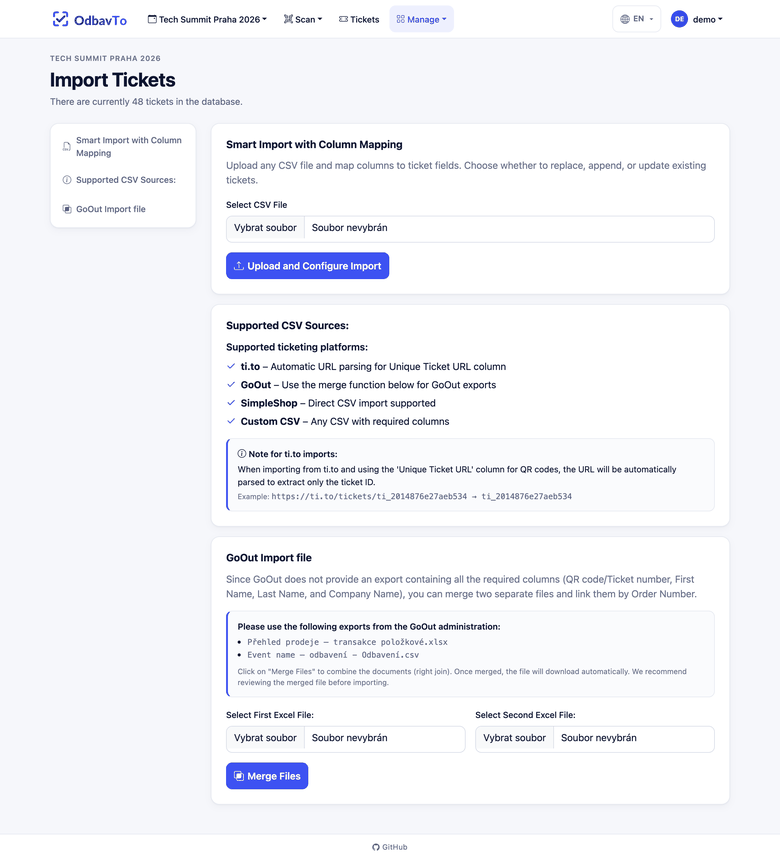
Open the import in Manage → Import. OdbavTo reads CSV and XLSX files from any ticketing system (GoOut, Ti.to, Google Forms, your own spreadsheet).
Smart import with column mapping
- Upload the file.
- The app recognizes known column names and suggests a mapping to ticket fields. Review it and adjust if needed.
- Check the preview. Errors (e.g. a missing first name) are highlighted before the import.
- Choose the import mode and confirm.
Import modes
| Mode | What it does |
|---|---|
| Replace All | Deletes all existing tickets of the event and imports the new ones. |
| Append | Adds only new tickets, skips duplicates (same QR code). |
| Update | Updates existing tickets by QR code and adds new ones. |
Replace All also deletes check-in status
Do not use Replace All during the event, you would lose the information about who has already checked in. To add newly sold tickets, use Append.
Automatically recognized columns
| Field | Column names |
|---|---|
| QR code | Ticket Number, Číslo vstupenky, Unique Ticket URL, qr, code |
| First name | Ticket First Name, Jméno, name, first name |
| Last name | Ticket Last Name, Příjmení, last name, surname |
| Company | Ticket Company Name, Firma, company, organization |
Ticket Email, Email, E-mail, mail |
Map any other columns manually.
Rows with errors
If some rows fail validation, the import lists them. You can fix them in the source file or use Force Import with Errors. A missing first name is then filled in as Missing Name (Row X) and a missing QR code as MISSING_QR_….
Import without QR codes
Small events or form registrations often have no QR codes. If you do not map any column to the QR code, each ticket gets an automatically generated code AUTO_….
Warning
Without QR codes on the tickets, check-in is manual only, by searching the name in the scanner or in the list. Use this as a fallback.
GoOut export
GoOut does not provide a single export with all required columns (QR code, first name, last name, company). OdbavTo can therefore merge two exports from the GoOut administration, check-ins and transactions, by order number.
- On the import page, choose merging files for GoOut.
- Upload both exports.
- Send the result straight to column mapping, or download it.